 LedgerCrossing
Allow LedgerCrossing in QuickBooks: Which Option to Pick
The first time LedgerCrossing talks to a company file, for example when you click Test connection, QuickBooks asks whether to let it in. This is a one-time setup for each company file, and the choice you make here decides whether LedgerCrossing keeps working when QuickBooks is closed.
The short version: choose Yes, always; allow access even if QuickBooks is not running, click Continue, click Yes on the next window, then click Done.
Before you start
- Open QuickBooks Desktop on the computer where LedgerCrossing is installed, and open the company file you want to connect.
- Sign in to QuickBooks as the Admin user. QuickBooks only lets the Admin approve a new application.
- Read each window before you press anything. Several of these windows are pre-set to No, so pressing Enter without reading turns LedgerCrossing away.
Step 1: Choose "Yes, always"
QuickBooks shows a window titled QuickBooks - Application Certificate. It names the application as LedgerCrossing and the developer as EFFIQUEST, LLC, the company behind LedgerCrossing.
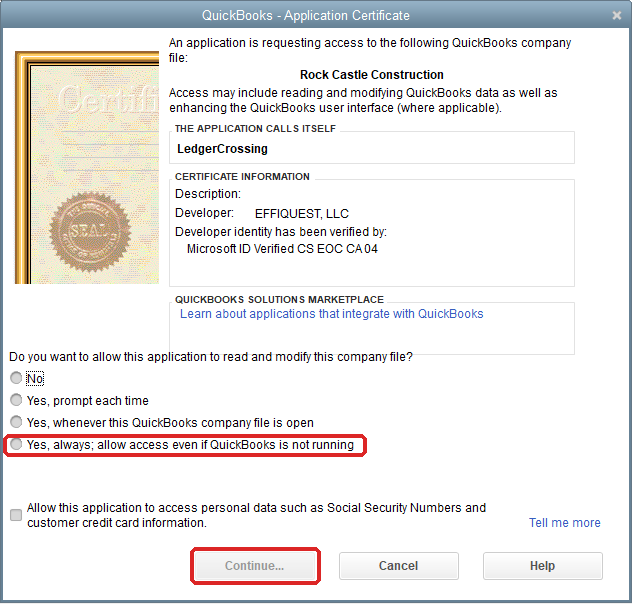
- Under Do you want to allow this application to read and modify this company file?, select Yes, always; allow access even if QuickBooks is not running (the last option).
- Leave the personal-data box (Social Security Numbers and credit card information) unticked. LedgerCrossing doesn't need it.
- Click Continue...
Don't pick Yes, whenever this QuickBooks company file is open. It looks reasonable, but LedgerCrossing loses access the moment QuickBooks closes, and your integrations and AI tools stop working until someone reopens the file.
Step 2: Click "Yes" on the warning
QuickBooks double-checks that you meant "always". The window is titled LedgerCrossing - Authorization.
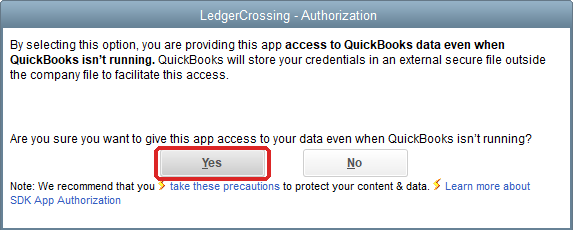
Click Yes. Clicking No sends you back without approving anything.
If QuickBooks shows a box titled Confirm to Proceed, click Yes there too. Its button is pre-set to No, so pressing Enter would deny access.
Step 3: Click "Done"
The Access Confirmation window sums up what you approved: LedgerCrossing can read and modify QuickBooks data in this company file, any time, even if QuickBooks is not running.
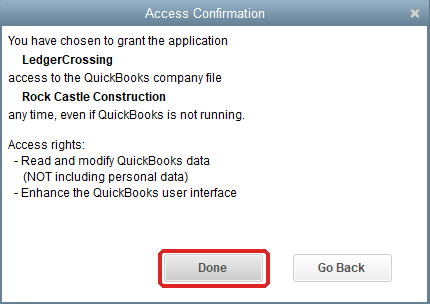
Click Done. LedgerCrossing is connected. Go back to LedgerCrossing and click Test connection to confirm.
If QuickBooks asks again after an update
Some QuickBooks or LedgerCrossing updates make QuickBooks ask for permission again. That's normal. Approve it the same way: Yes, always, then Yes, then Done.
If you picked the wrong option
You can change it in QuickBooks without reinstalling anything:
- Sign in to QuickBooks as the Admin user with the company file open.
- Go to Edit > Preferences > Integrated Applications, then the Company Preferences tab.
- Select LedgerCrossing and click Remove, then OK.
- In LedgerCrossing, click Test connection. QuickBooks asks again; follow the three steps above.
If something still isn't working, email [email protected] and tell us which option you picked. For connecting AI clients once QuickBooks is set up, see the MCP quickstart.